Use this guide to connect ChatGPT (browser, desktop, and mobile) to your eGain MCP server. Add the plugin once in the browser; desktop and mobile pick it up from your ChatGPT account.
- An eGain Knowledge tenant. If you do not have one, sign up for a free trial of AI Knowledge Hub or AI Developer on eGain.com, or ask your eGain administrator to create an account for you in your team's existing tenant.
- Administration Console access for the partition you want ChatGPT to read from (needed to enable Remote MCP).
- A ChatGPT account with permission to add custom plugins. MCP access mirrors your eGain user's permissions — ChatGPT can only access the portals and articles that your eGain user account can access.
Contact Support before you set up Remote MCP For versions 21.24 and earlier, Remote MCP is not available in all customer environments. Contact Support to enable Remote MCP for your tenant or to confirm availability for your environment.
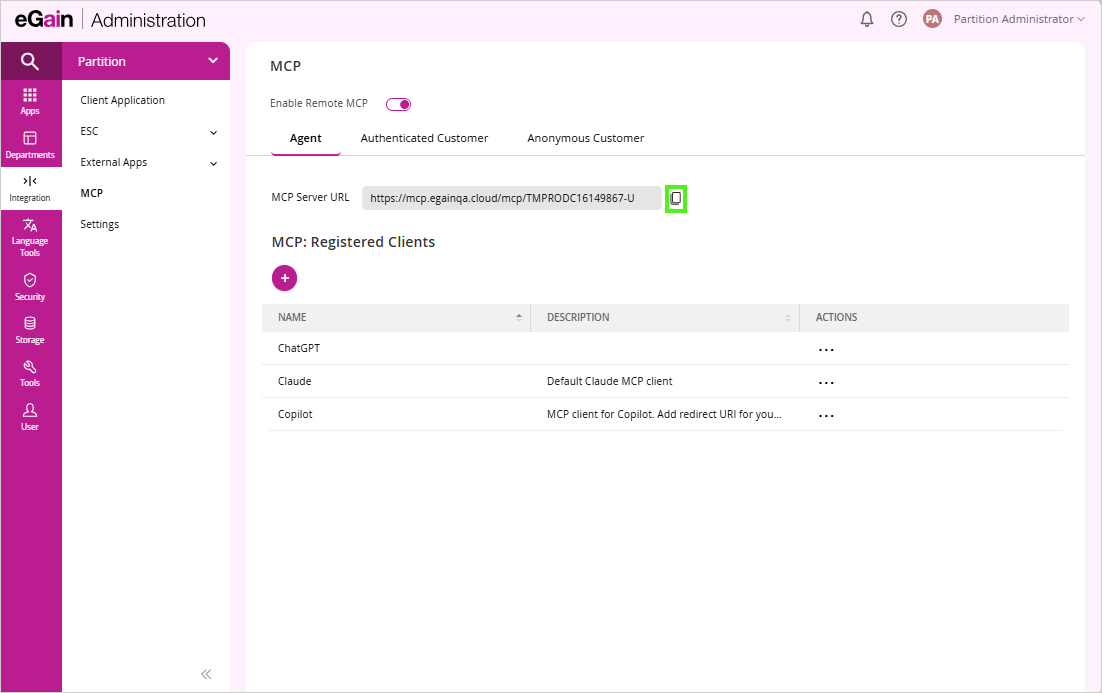
- Sign in to your eGain Administration Console. Your tenant URL follows the pattern
https://<your-eGain-hostname>/<your-tenant-id>— for example,https://ai.egain.cloud/a1b2orhttps://aidev.egain.cloud/a1b2. - Go to Partition → Integration → MCP.
- Turn on the Enable Remote MCP toggle.
- Select one of the available tabs for your use case:
- Agent: for agent-only MCP access.
- Authenticated Customer: for authenticated customer access.
- Anonymous Customer: for anonymous customer access.
- Click the copy icon next to the MCP Server URL field to copy the URL. You will paste this into ChatGPT in the next step.
Custom plugins can only be added in the browser at chatgpt.com:
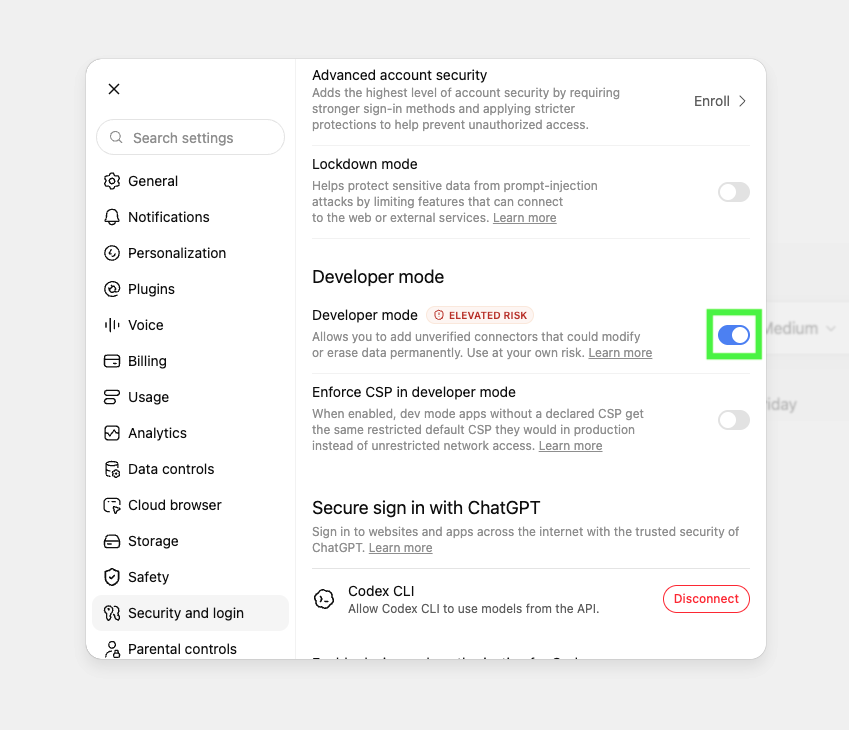
- Open ChatGPT, click your profile in the bottom left, then click Settings.
- Go to Security and login and turn on Developer mode.
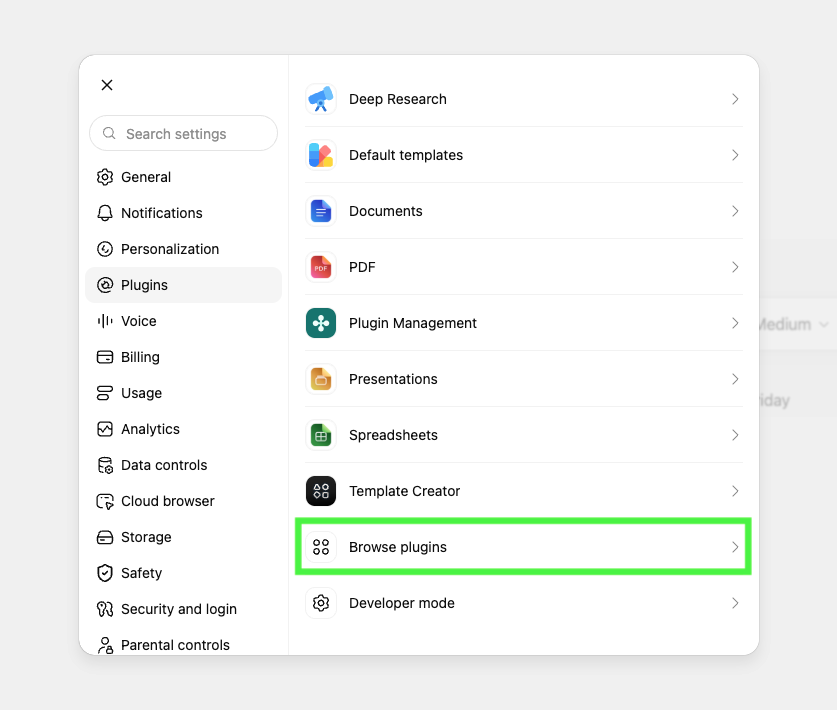
- Go to Plugins and click Browse plugins.
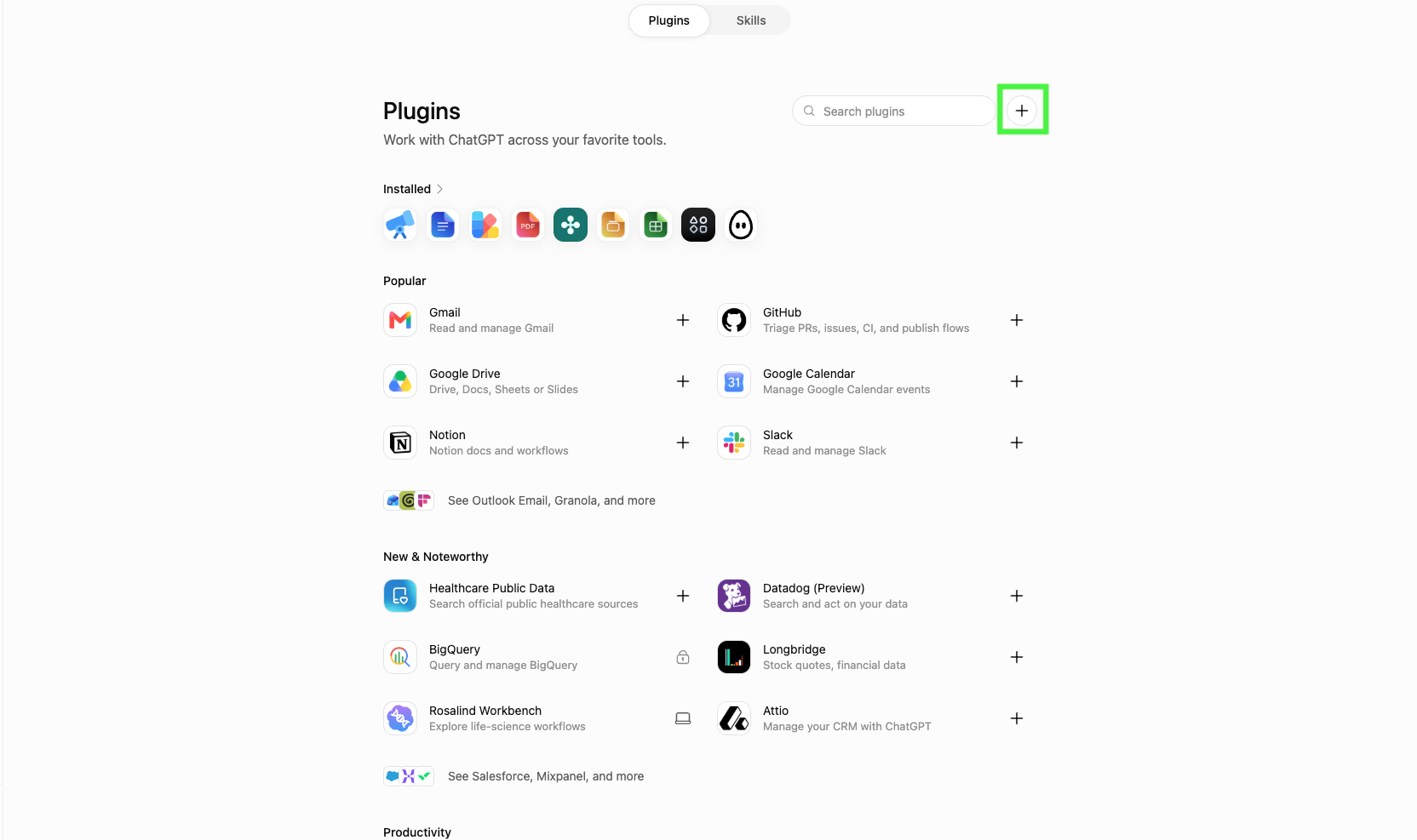
- Click + to add a new plugin.
- Enter a name and paste the MCP Server URL you copied from the Administration Console into the Connection field.
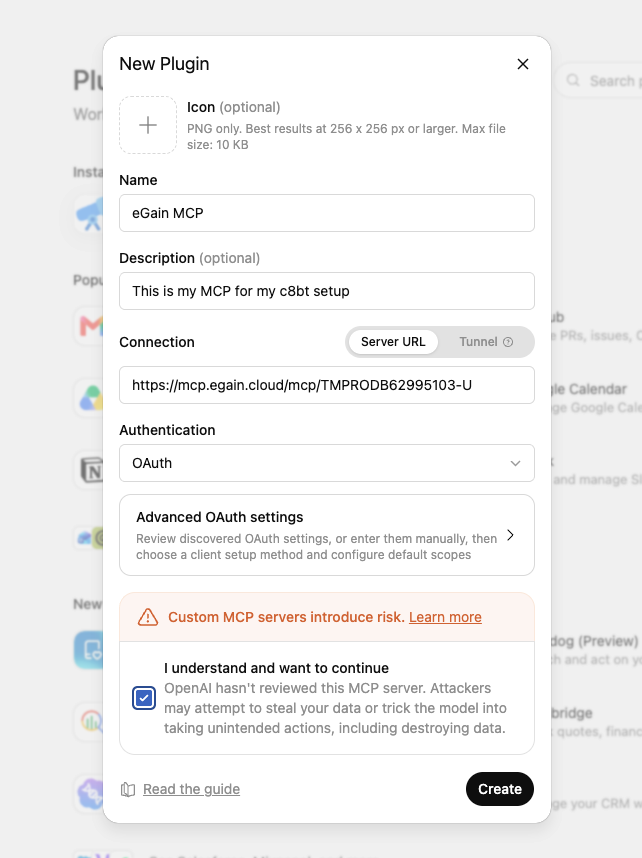
- Set Authentication based on the MCP URL you copied:
- Anonymous MCP URL: set Authentication to No Auth, then click Create. You can skip the remaining steps in this section.
- Authenticated MCP URL: set Authentication to OAuth, then continue below.
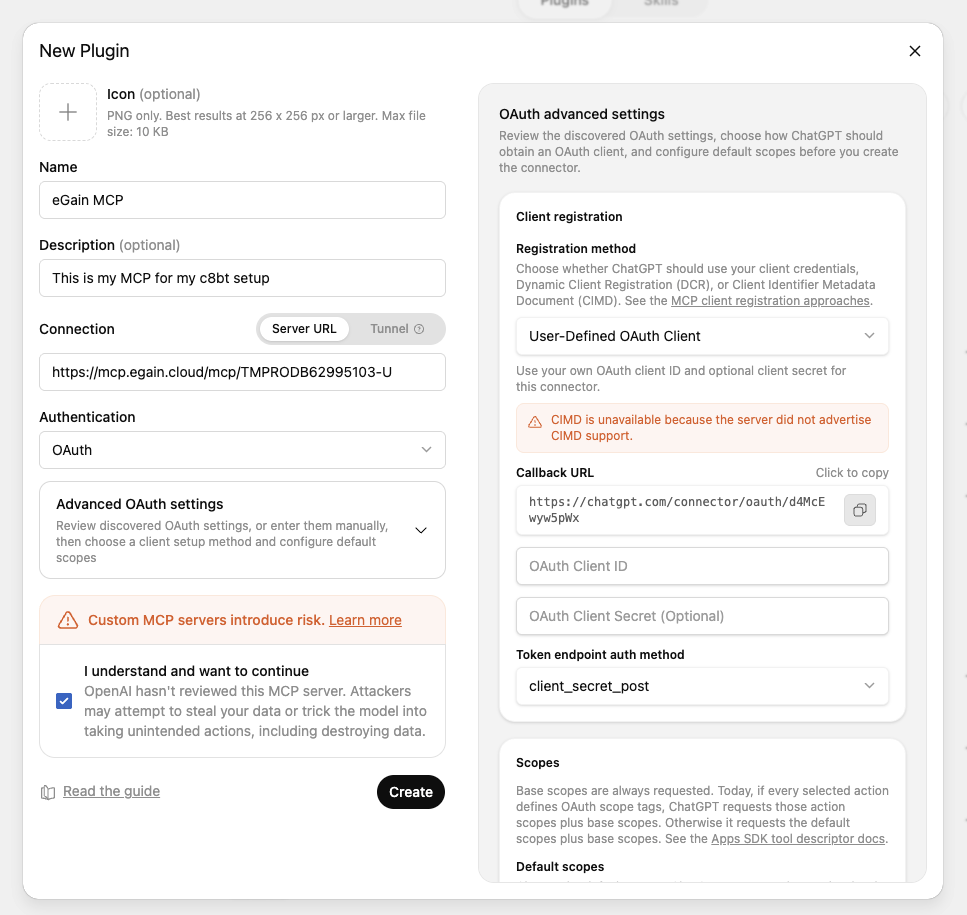
- Click Advanced OAuth settings. Copy the Callback URL. You will also need to fill in OAuth Client ID and OAuth Client Secret after you create the client in eGain.
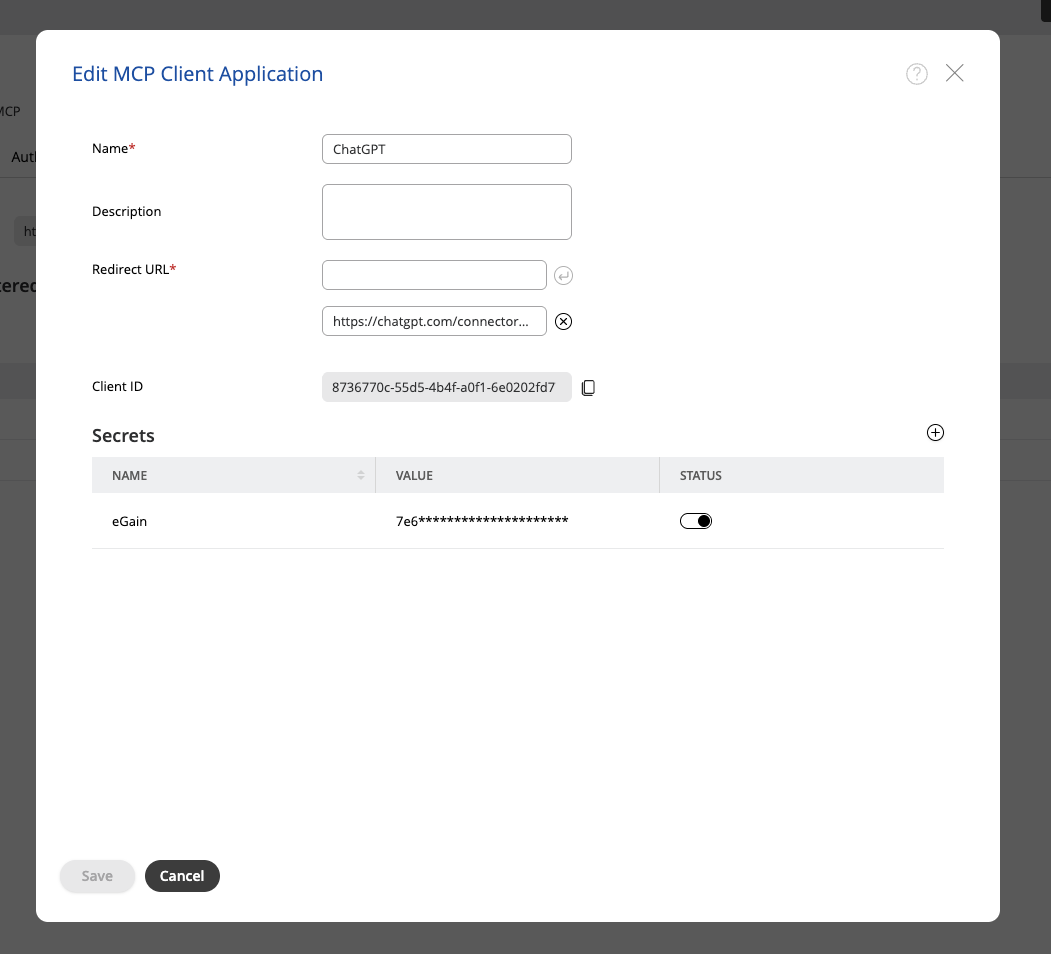
- Return to the eGain Administration Console. Under MCP: Registered Clients, add a client (for example, named
ChatGPT). Paste the Callback URL into Redirect URL and save.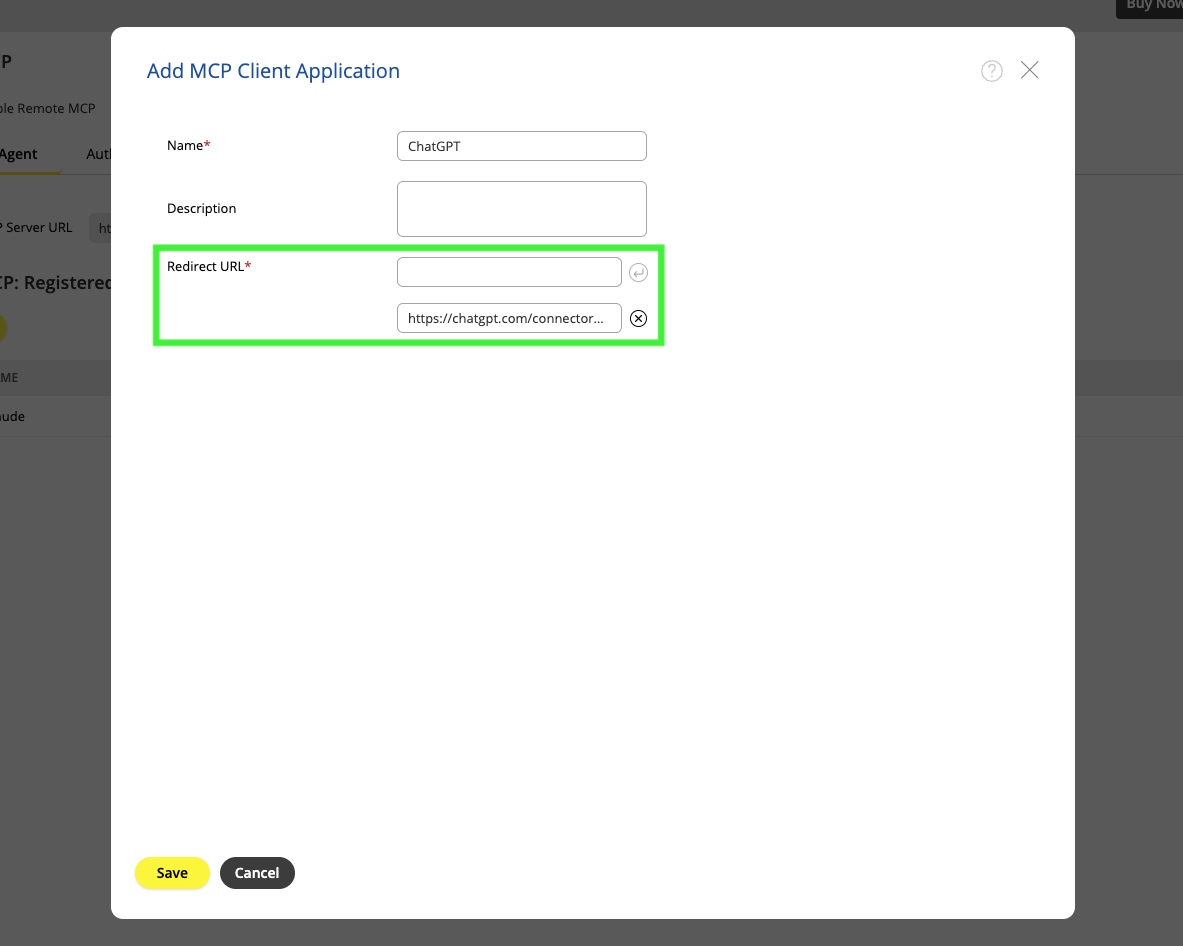
- On that registered client, open the ⋯ menu and click Display. Copy the Client ID into the ChatGPT plugin's OAuth Client ID field.
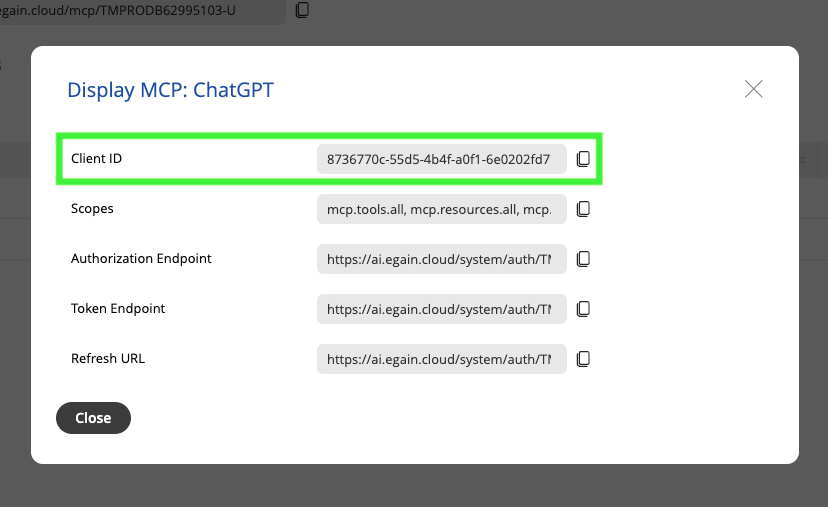
- Close the Display dialog. Open ⋯ again and click Edit. Under Secrets, add a secret. eGain generates the value — copy it before it disappears, then paste it into the ChatGPT plugin's OAuth Client Secret field.
- In ChatGPT, click Create. If ChatGPT does not connect on its own, click Connect and sign in with your eGain account.
Add the plugin once in the ChatGPT browser. The mobile and desktop apps pick it up automatically because it is tied to your ChatGPT account — there is no separate Add plugin option in those apps.
For ChatGPT plugin and developer mode details, see OpenAI's developer mode help and developer mode guide.
Open a new chat in ChatGPT and ask something like:
"What does our master knowledge base say about refunds?"
- Authentication: ChatGPT authenticates using OAuth 2.0 with your eGain account. ChatGPT never sees your account password.
- Visibility: ChatGPT can only see the portals and articles your eGain user is allowed to see.
- Revoking access: Revoke access at any time from ChatGPT Settings → Plugins, or from your eGain account settings.
- Anonymous access: If your portal allows it, you can skip sign-in entirely. ChatGPT will see only what unauthenticated visitors see on your portal.
- "No portals found". Confirm that the eGain account you signed in with has access to at least one portal.
- Changed eGain tenants. Disconnect and reconnect using the new tenant's MCP Server URL, or add a new plugin.
- Sign-in loop in the browser. This is usually a third-party cookie issue — try a private window or a different browser.
- Support: For issues not covered above, Contact Support.
- Privacy: eGain Privacy Policy